


How to Update Microsoft Office via Company Portal
Audience: Utah Tech University faculty and staff on Windows computers
Applies to: Windows devices enrolled in Intune / Company Portal
|
Before you begin Save your work and close every Office application (Word, Excel, PowerPoint, Outlook, Teams, etc.) before starting the update.
The whole process — download, uninstall of Office 2021, install of Office 2024, and restart — takes about 1 hour on a typical connection. Actual time varies with network speed.
While the update is running, the desktop Office apps will be unavailable. If you need Office during this window, use the web version at office.utahtech.edu.
This update is optional through Company Portal through the end of the 2026 Fall semester. At the end of the 2026 Fall semester, IT will force the update to Office 2024 LTSC on any device that hasn't updated yet.
Questions or issues? Call the IT Technicians at 435-688-8324. |
Step 1: Close all Office applications
Before you begin, close Word, Excel, PowerPoint, Outlook, and any other Office apps that are currently open. This prevents files from being locked during the uninstall/install process.
Step 2: Open Company Portal
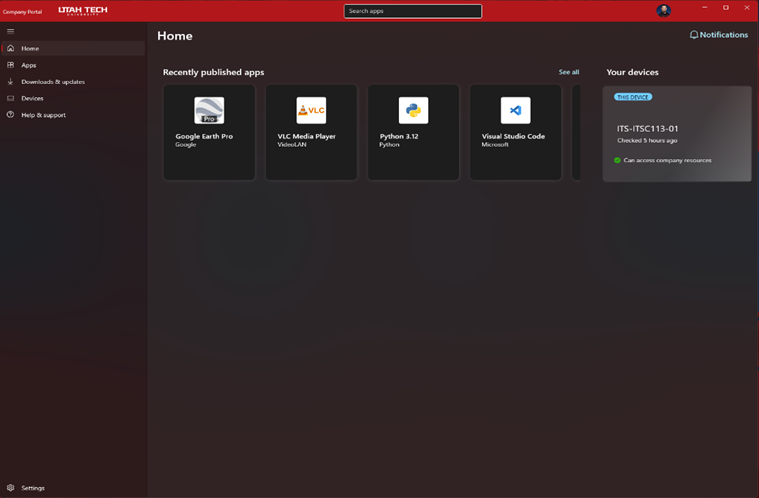
Open the Company Portal app on your Windows computer (search for "Company Portal" in the Start menu). You'll land on the Home screen.
Step 3: Find Office 2024 LTSC
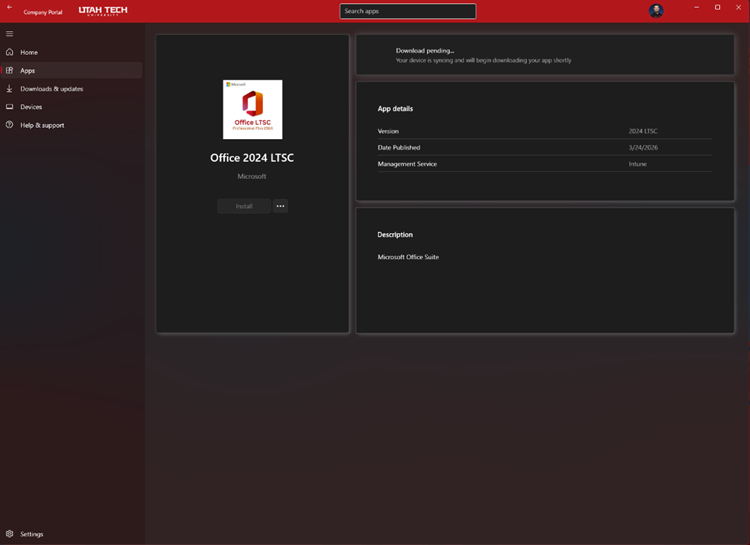
Click Apps in the left-hand navigation, or use the Search apps bar at the top, and locate "Office 2024 LTSC" (published by Microsoft). Click on it to open its details page.
Step 4: Start the install
On the Office 2024 LTSC details page, review the app details (Version: 2024 LTSC, Management Service: Intune), then click Install.
You'll briefly see a "Download pending" status while your device syncs and prepares to download the app.
Step 5: Confirmation that Office 2021 is being replaced
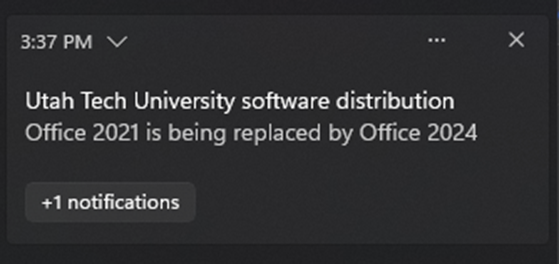
Shortly after clicking Install, a notification will pop up confirming that Office 2021 is being replaced by Office 2024.
Step 6: Monitor download and install progress
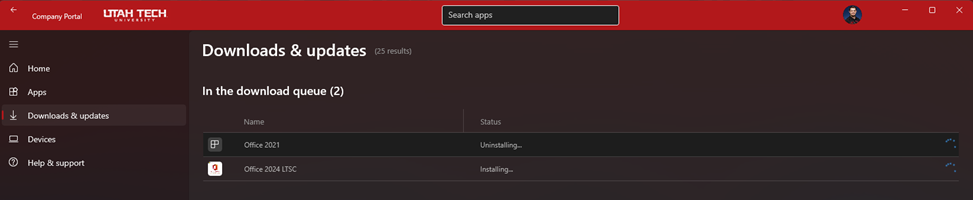
You can track progress at any time from the Company Portal under Downloads & updates. You'll see Office 2021 listed as Uninstalling and Office 2024 LTSC listed as Installing.
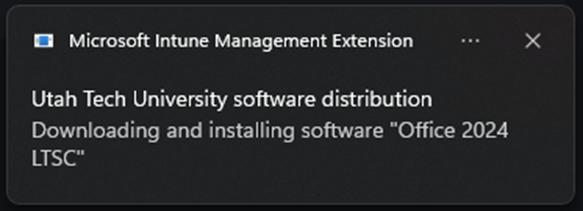
You may also see a notification from the Microsoft Intune Management Extension confirming it is downloading and installing Office 2024 LTSC.
Step 7: Restart your computer when prompted
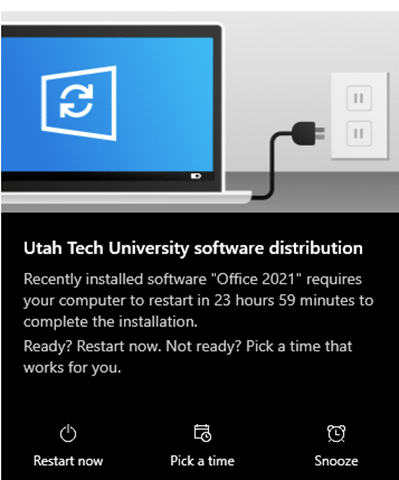
Once Office 2021 has been uninstalled, Windows will notify you that a restart is required to finish the installation, and will give you a countdown window (about 24 hours) to do so.
Choose Restart now if you're ready, or Pick a time that works for you. Don't wait too long — Office 2024 LTSC won't finish installing until after the restart.
Step 8: Confirm the install finished
After your computer restarts and you sign back in, you can reopen Company Portal and check Downloads & updates to confirm Office 2024 LTSC finished installing.
When the install completes, you'll see a final confirmation notification letting you know Office 2024 LTSC was installed successfully.

Good to know
• Total time: roughly 1 hour, but this varies based on your network connection.
• No desktop Office during the update: use the web version at office.utahtech.edu if you need Word, Excel, or Outlook while the update is running.
• Deadline: this update is available to run on your own schedule through Company Portal until the end of the Fall semester. After that date, the update will be pushed automatically to any device still on Office 2021.
• Need help? Contact the IT Technicians at 435-688-8324 with any questions or issues during the upgrade.

