


Sharing files through OneDrive or Teams is a convenient way to facilitate collaboration between users both inside and outside Utah Tech University.
The ability to grant others access to your files carries some risk.
When sharing files and folders, be careful to assign the correct permissions for what you want other people to be able to see and edit.
- Limit "Share with Anyone" links
- Set expiration dates for links you share
- Grant access to only necessary specific folders/files
- *By default, sharing a folder will give access to subfolders contained within
Granting and revoking access to your shared Teams and OneDrive files is your responsibility.
Setting up a shared folder or file
Teams and OneDrive both have similar interfaces for their permissions.
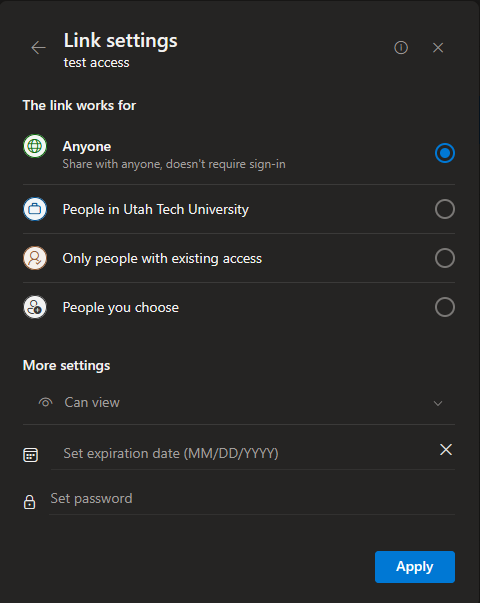
After selecting "Share", you will be presented with options for configuring permissions on the file or folder.
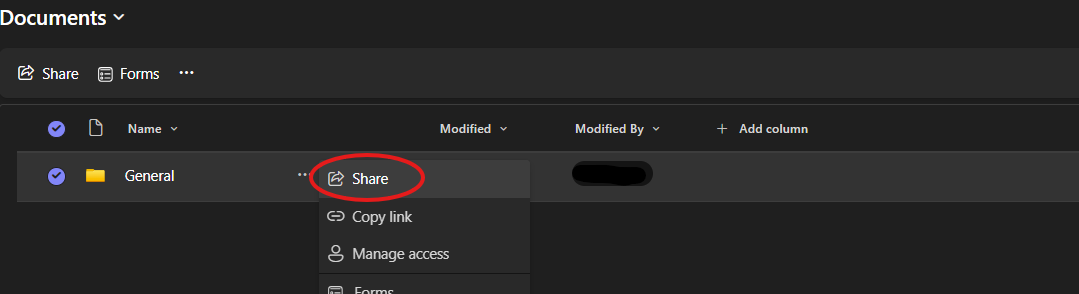
Add individual users, people with existing access, or people outside the university:
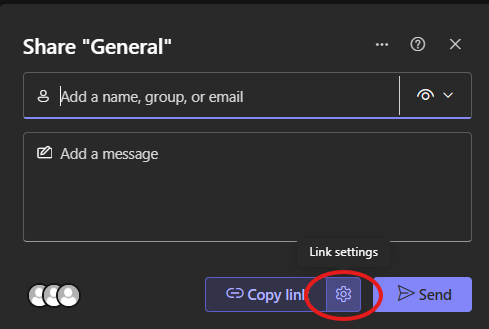
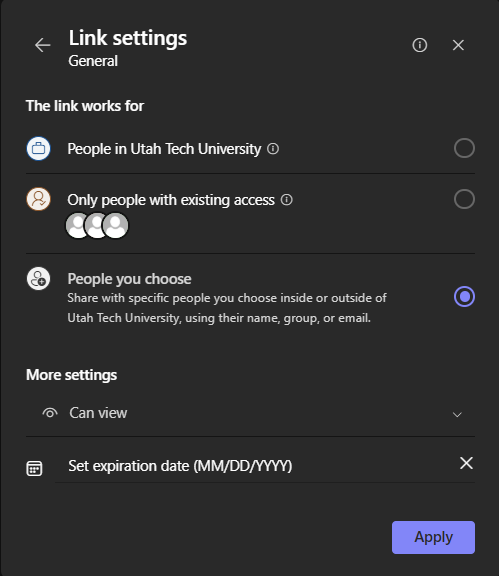
Set your permissions level for users you share the files/folders with:
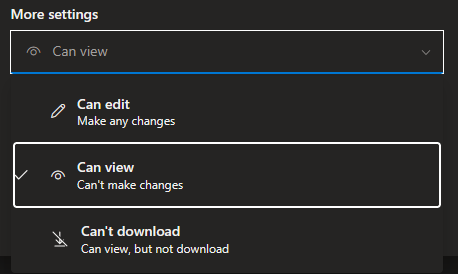
Even if you set "Can't download" permissions, users can still take screenshots, recordings, or pictures with a separate device of files they can view.
You can also set expiration dates for files and folders you share.
Be careful when configuring "Share with Anyone" links.
These will allow anyone who has the link to access your files/folders and risk exposing your shared files to the open internet.
An entire Team or OneDrive can also be restricted to only sharing content internally at Utah Tech.
Please submit a ticket to the IT helpdesk to configure this if desired.

